Overview
Social Reading (Graded PDF Annotation) allows instructors and students to have a discussion right inside the text. With Social Reading, you can:
- Encourage students to read by making reading itself a class activity.
- Increase content retention by inviting students to think and reflect while they read.
- Discuss a wide variety of documents. What can you turn into a PDF? Just about anything! In addition to course readings, you can invite students to annotate the course syllabus, assignment sheets for major projects or papers, sample assignments, lecture slides, and more.
See also:
Interactive Tutorial
Use the interactive tutorial below to learn about Social Reading. If you need or prefer text-based instructions, proceed to Easy Wizard Setup for Social Reading (Recommended) or Manual Configuration and Editing (Advanced). Some tips:
- Get ready to interact! If you see a flashing purple dot, click it to move forward.
- You're in control. Use the Back and Next buttons in the upper left corner to navigate more quickly between steps.
Note: You will need to Add a Harmonize Component to Your Course before configuring your social reading activity.
Easy Wizard Setup for Social Reading (Recommended)
- After you add the social reading component to your course and launch the activity, you will see the setup wizard.
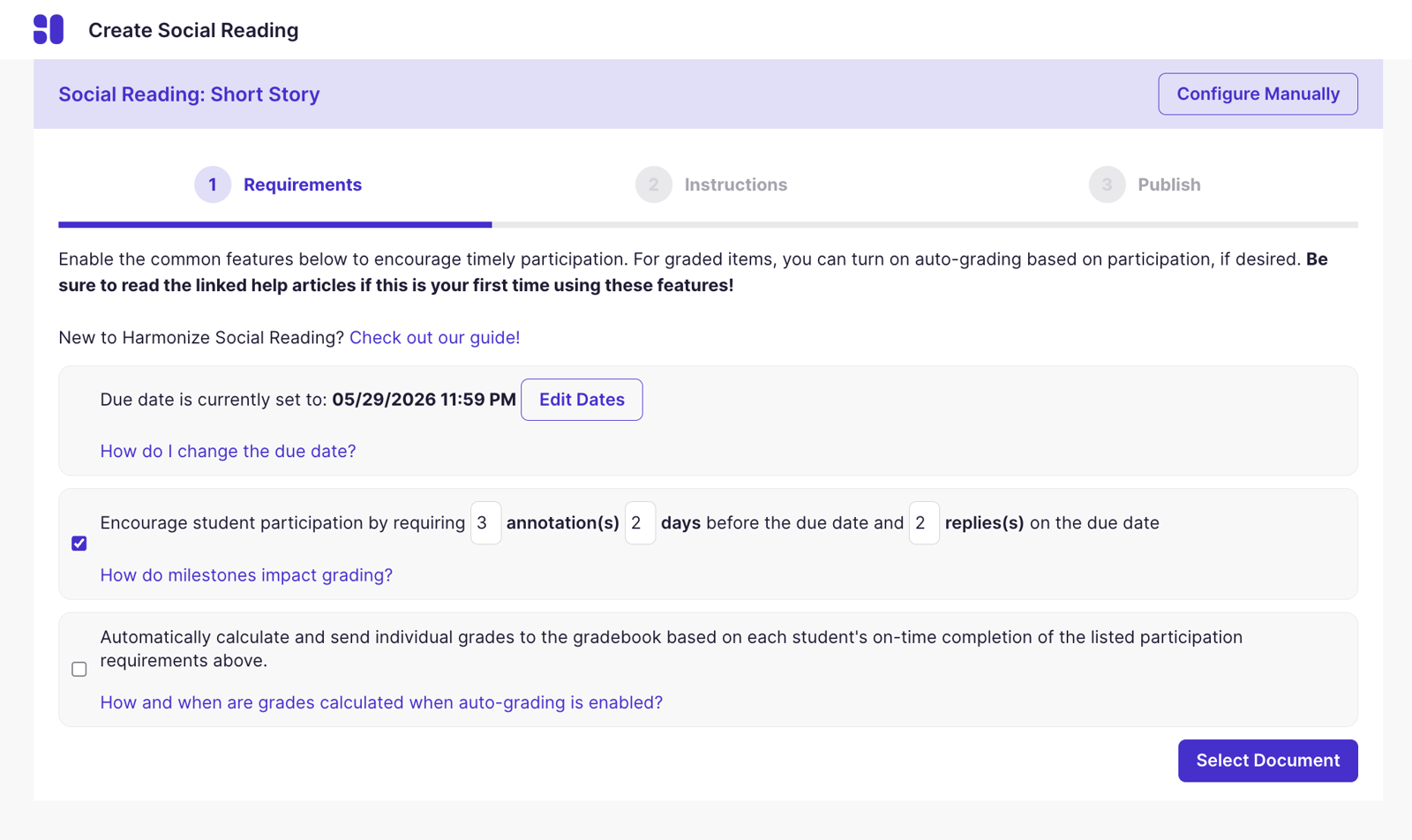
- First, review the due date for your activity. This should be the date when the last annotations or replies are due.
- Choose to enable or disable milestones. You can choose how many annotations and replies students should complete and when.
- Choose to enable or disable auto-grading. When enabled, students will receive credit automatically if they complete the required number of annotations and replies on time.
- When you're ready, click Select Document.
- Upload your file for annotation. We recommend uploading fully accessible PDFs. You can also upload Word documents, PowerPoints, and other common file types, and we will attempt to convert them to PDFs.
- Click Write Instructions.
- You will see prefilled instructions for a basic social reading activity. You can review these instructions and choose to keep, edit, or replace them.
- Optionally, you can upload or create media to enrich your instructions, or you can put your students in small groups.
- Click Continue to Publishing.
- If you're happy with what you've created, you can click Publish.
- If you'd like to instead access additional settings, you can click Configure Additional Settings.
-
Additional Settings include:
- Connecting to Canvas or Blackboard group sets.
- Choosing to allow late work to count for auto-grading.
- Adjusting the points allocation for auto-grading.
- To learn more about about these settings, go to Manual Configuration and Editing (Advanced).
Manual Configuration and Editing (Advanced)
- First, Add a Harmonize Component to Your Course.
- Next, navigate to your Social Reading activity and click the title to open it.
- If this is your first time opening the PDF, you will be presented with the Edit PDF Annotation window. If not, click the Edit button near the top right of the Harmonize window.
- From the Edit PDF Annotation window you may:
- [1] View the Social Reading Due Date. (To change this date, please see Setting Assignment Dates.)
- [2] Click the PDF file name to view the PDF file.
- [3] Update annotation Instructions.
- [4] Update Annotation Settings.
- [5] Update Milestone Due Dates & Autograding.
Update Annotation Settings
- Click Annotation Settings to set Visibility Settings for your Social Reading activity. Depending upon your LMS, these options include:
- Visible to Everyone
- Students in Same Sections (Canvas only)
- Students in Same Group
- Private Between Students & Instructors
Update Milestone Due Dates & Autograding
- Click Milestone Due Dates & Autograding to access these settings:
- [1] Participation Auto-Grading. Auto-grading is disabled by default. If enabled, we will grade students automatically based on completion of milestones.
- [2] Late Participation. If you enable auto-grading, you can choose whether late participation earns points. By default, it does not.
-
[3] Milestone. Update milestones accordingly. For each milestone, you can:
- Set Points (if auto-grading is enabled).
- Change Requirements.
- Adjust Complete By date.
- At the bottom, you can:
- [1] Add Milestone to add as many milestones as desired.
- [2] Check Total Requirements.
- [3] Publish when ready.
Social Reading Display Modes
Social Reading displays differently depending on the amount of screen space available. There are two display modes:
- Side-by-Side (More Screen Space): In this mode, the document displays on the left, while the annotation panel displays on the right. The annotation panel is always visible.
- Annotations Collapsed by Default (Less Screen Space): In this mode, the document remains visible, while the annotation panel is collapsed by default. Users can view annotations by selecting highlights and pins or by opening the annotation panel manually.
Users can always launch the activity in a new window if they prefer the side-by-side view. Additionally, in Canvas, Brightspace, and Blackboard, instructors can set the activity to open in a new tab or window by default. This option may also be available in some Moodle environments.
Use the following demo to see the different display modes and learn how to change how the activity opens by default.
What file types can I upload for social reading?
For the best user experience, we recommend uploading fully accessible PDFs. However, you can also upload common file types like Word Documents and PowerPoint slide decks, and will attempt to convert them to PDFs automatically.
Supported
- PDFs (recommended)
- Word Documents
- PowerPoint Slides
Not Supported
- Images
- Video
Alternatives for Annotating Images and Videos
If you want your students to annotate images, you will either need to convert them to PDFs yourself or use the image annotation tool inside a Harmonize discussion, peer review, or individual assignment.
Note: If the document contains no readable text, students will need to use pins instead of the highlighting tool.
If you want your students to annotate videos, you have two options:
- Ask students to do timestamped video feedback inside a Harmonize discussion, peer review, or individual assignment.
- Upload or record a video (or include a link to a YouTube video) in the instructions for your social reading activity. When prompted to upload a document for annotation, upload the video's transcript. Students will be able to view the video in the instructions and annotate the transcript either during or after watching.
Creating Annotations
Once the Social Reading activity is created, instructors and students can add new annotations as well as respond to the annotations of others.
Section 1: Navigation and Filtering Options
| Show / Hide Annotations | |
| Previous / Next Annotation | |
| Zoom In, Zoom Out, Select Magnification |
Section 2: Annotation Tools
| Create a Highlight | |
| Drop a Pin | |
| Move / Pan |
Section 3: Annotation Menu
| Open / Close Annotations Panel |
The Annotations Panel
Here is an example of how top-level student annotations and replies appear in the Annotations Panel:
Previous / Next Annotation |
|
|
Annotation Action Menu
Edit Annotation
Delete Annotation
|
|
Reply to Annotation |
Frequently Asked Questions
Q. How do I grade my social reading assignments?
- For a full guide, go to Grading Your Social Reading (PDF Annotation) Assignments.
Q. Can I use Milestones in social reading activities?
- Yes. You can set milestones for top-level annotations as well as replies to annotations.
Q. Can I use Harmonize's Group Visibility setting in a social reading activity?
- Yes. Click the Harmonize "Edit" button and click the Annotation Settings tab. Choose "Students in Same Group" and select your desired group set from the Group Set drop down menu.
Q. Can I auto-grade my social reading activity?
- Yes. Auto-grading is now available in Social Reading (PDF Annotations). For more information, go to Grading Your Social Reading (PDF Annotation) Assignments.
Q. Can students upload their own PDFs for annotation by the rest of the class?
- Yes, but not in Social Reading. See Document Critique.
Q. Can this tool be used in a private mode where students don't see each other's annotations?
- Yes, but you might instead consider using Document Critique inside an individual assignment.
Q. Can I hide annotations from students who haven't annotated yet?
- Yes, but not in Social Reading. See Document Critique.